User Management
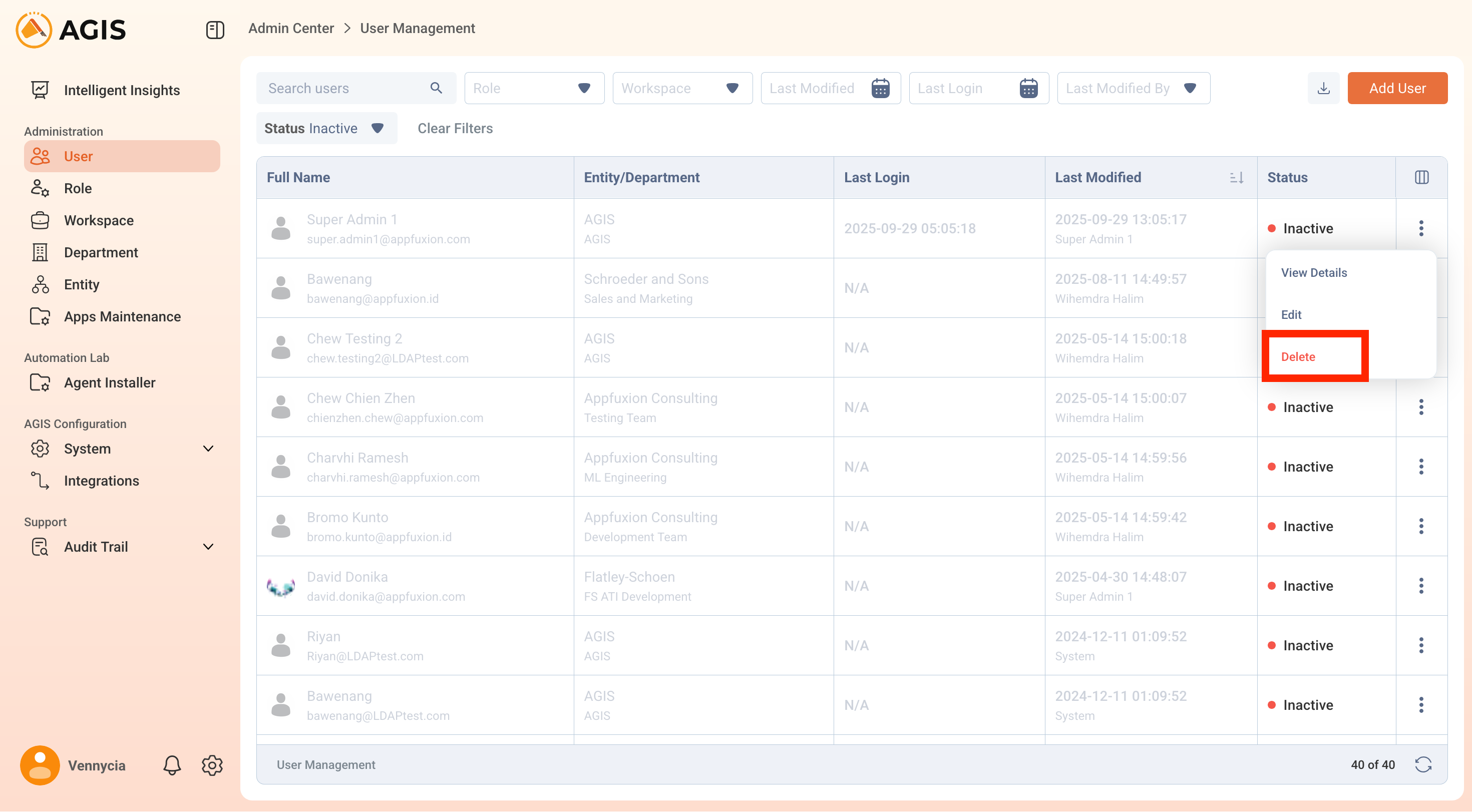
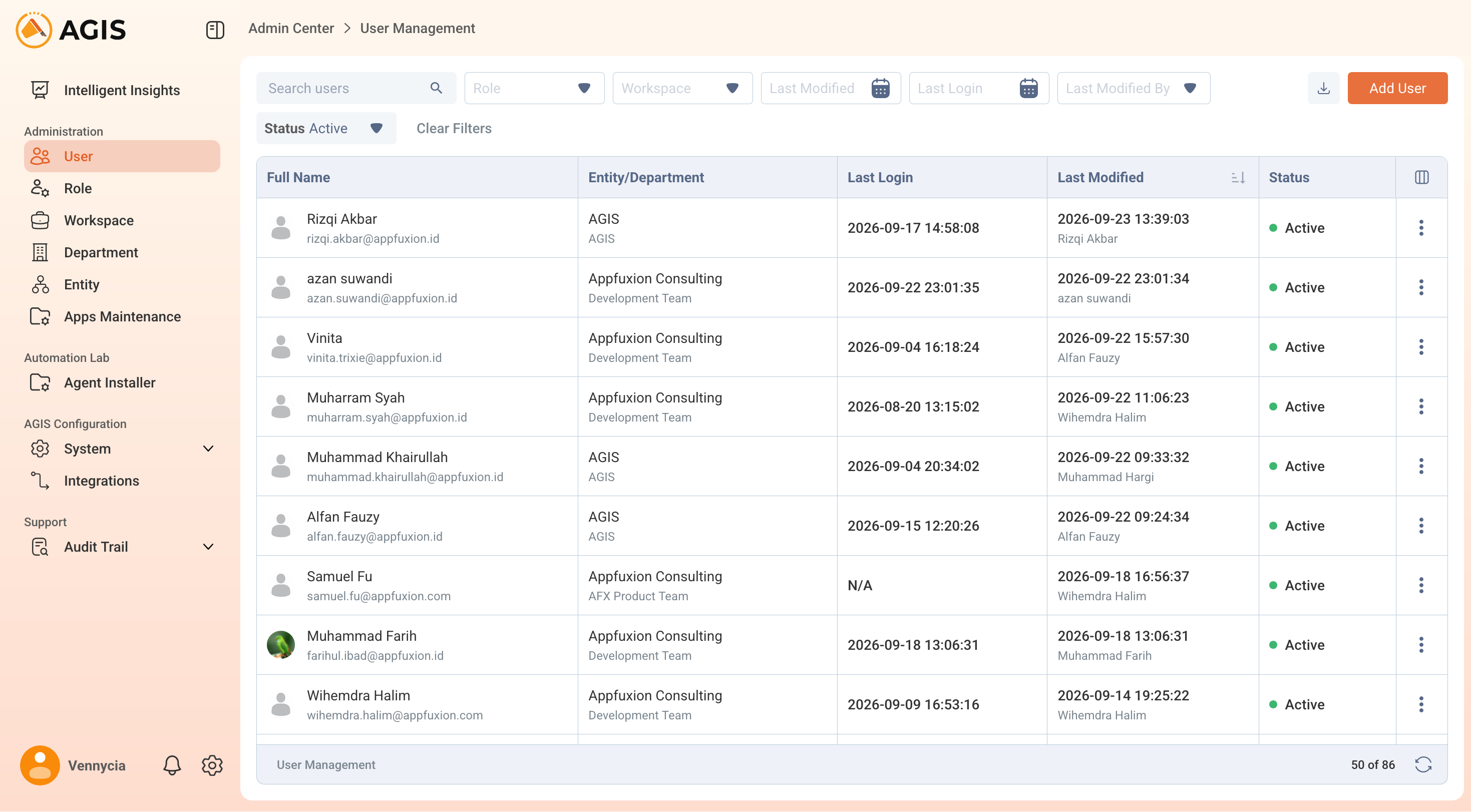
User Management can be found in the Admin Center, under Administration. User Management serves as a centralized hub which allows users with an Admin role and View User permission to manage users of AGIS.
Search, Filtering, and Sorting
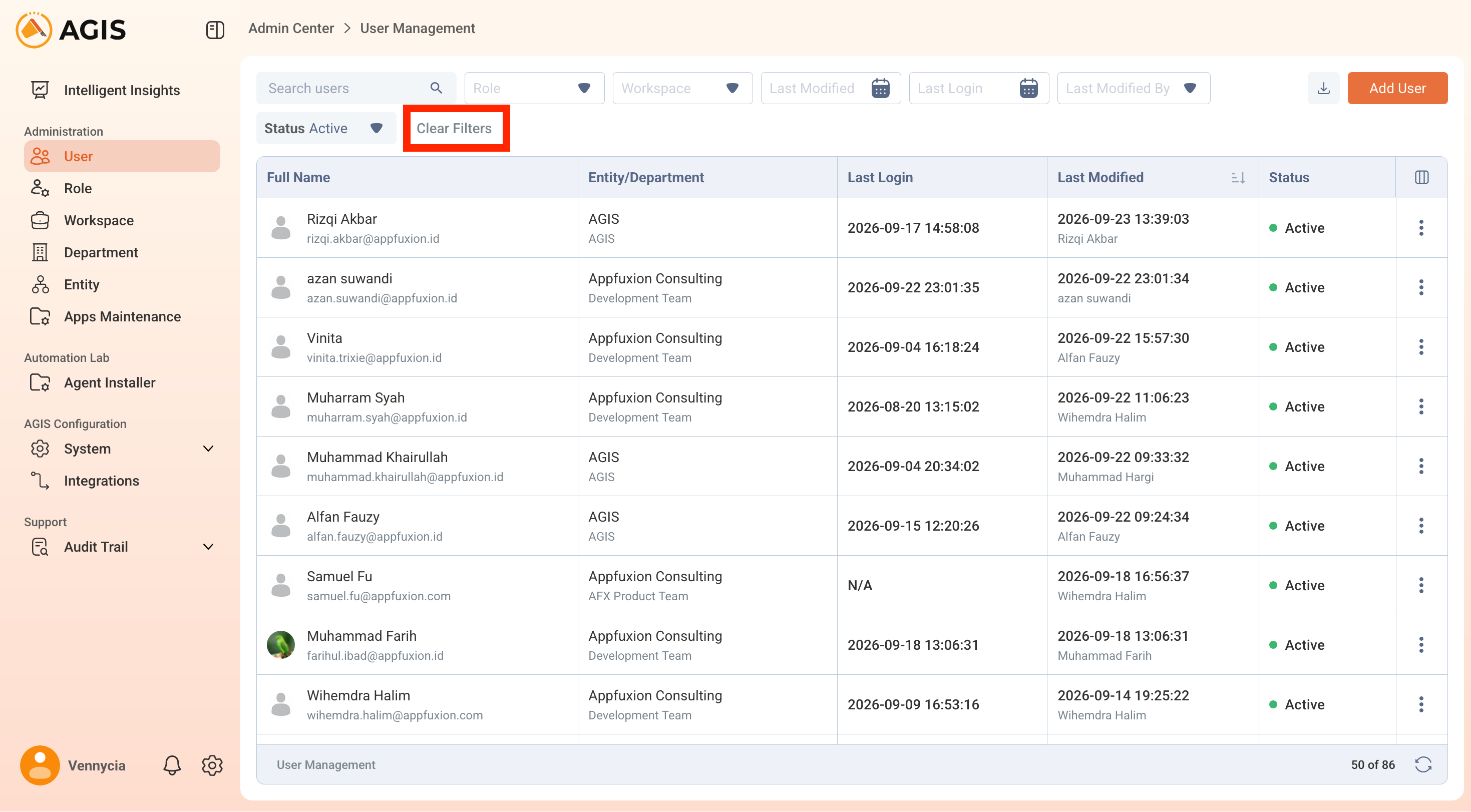
User Management features search, filtering, and sorting controls. Users will be able to do keyword-based lookup, filtering based on role, workspace, last modified, last login, last modified by, and status, and sorting in ascending or descending order.
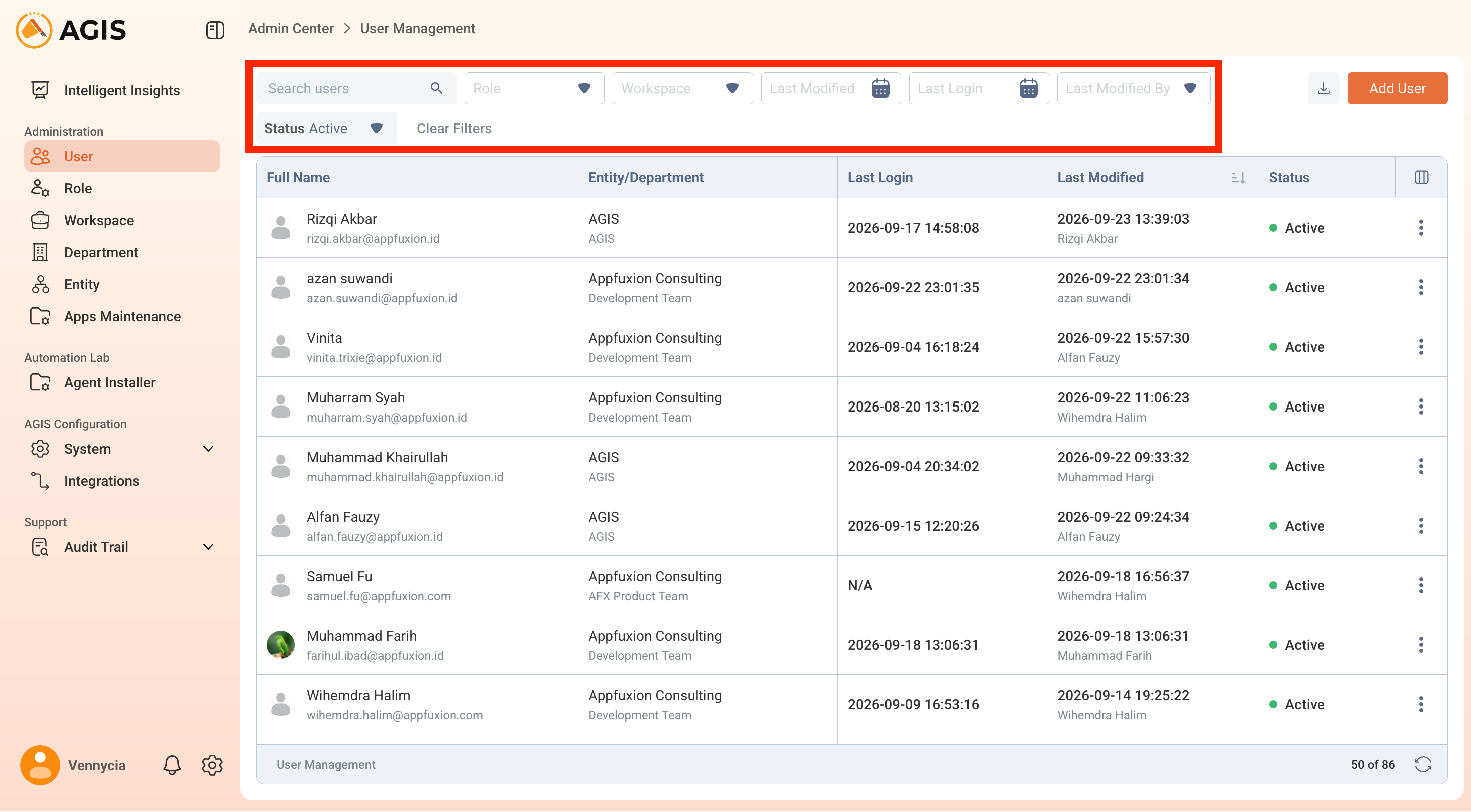
Clear Filters will clear any search done and filters applied.
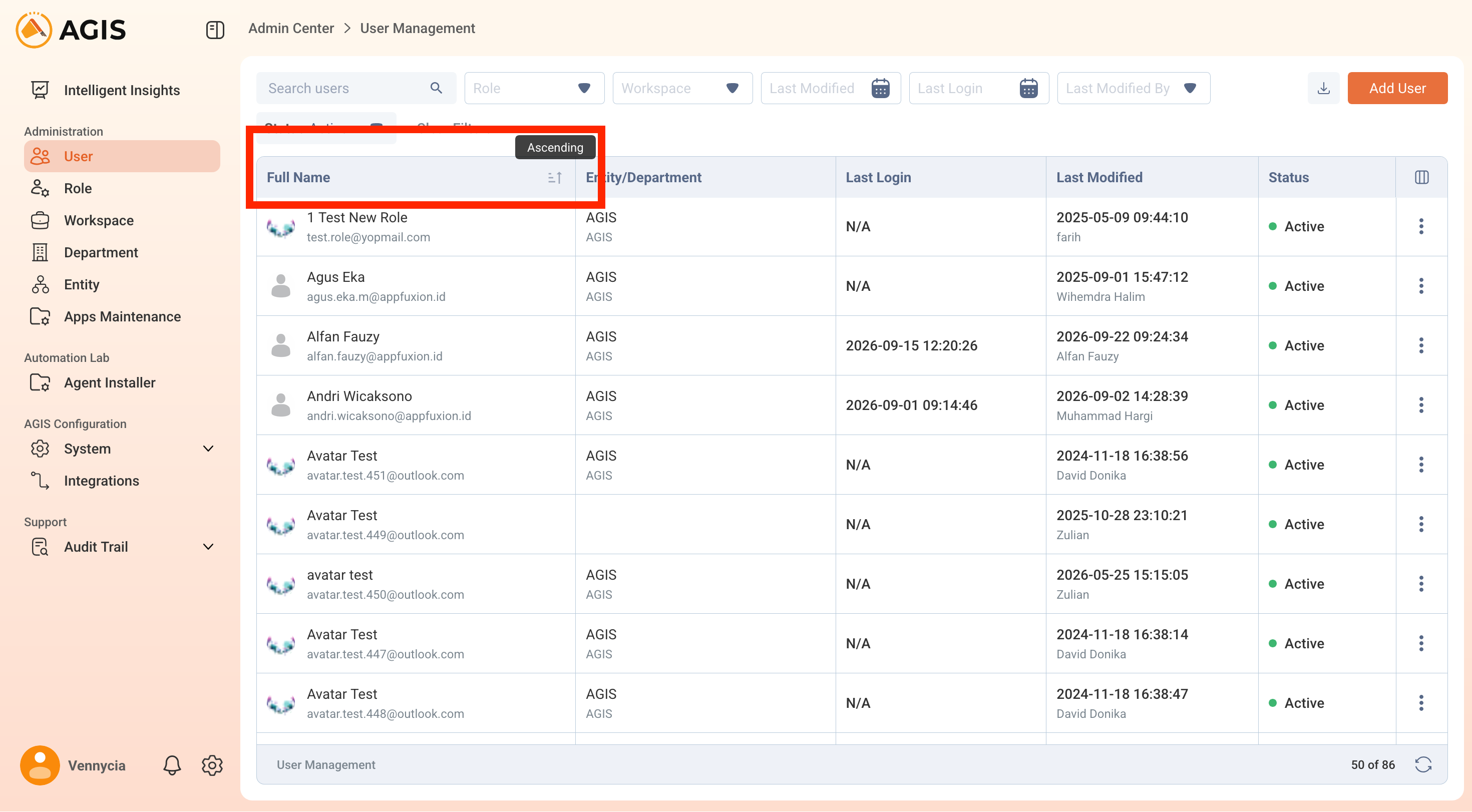
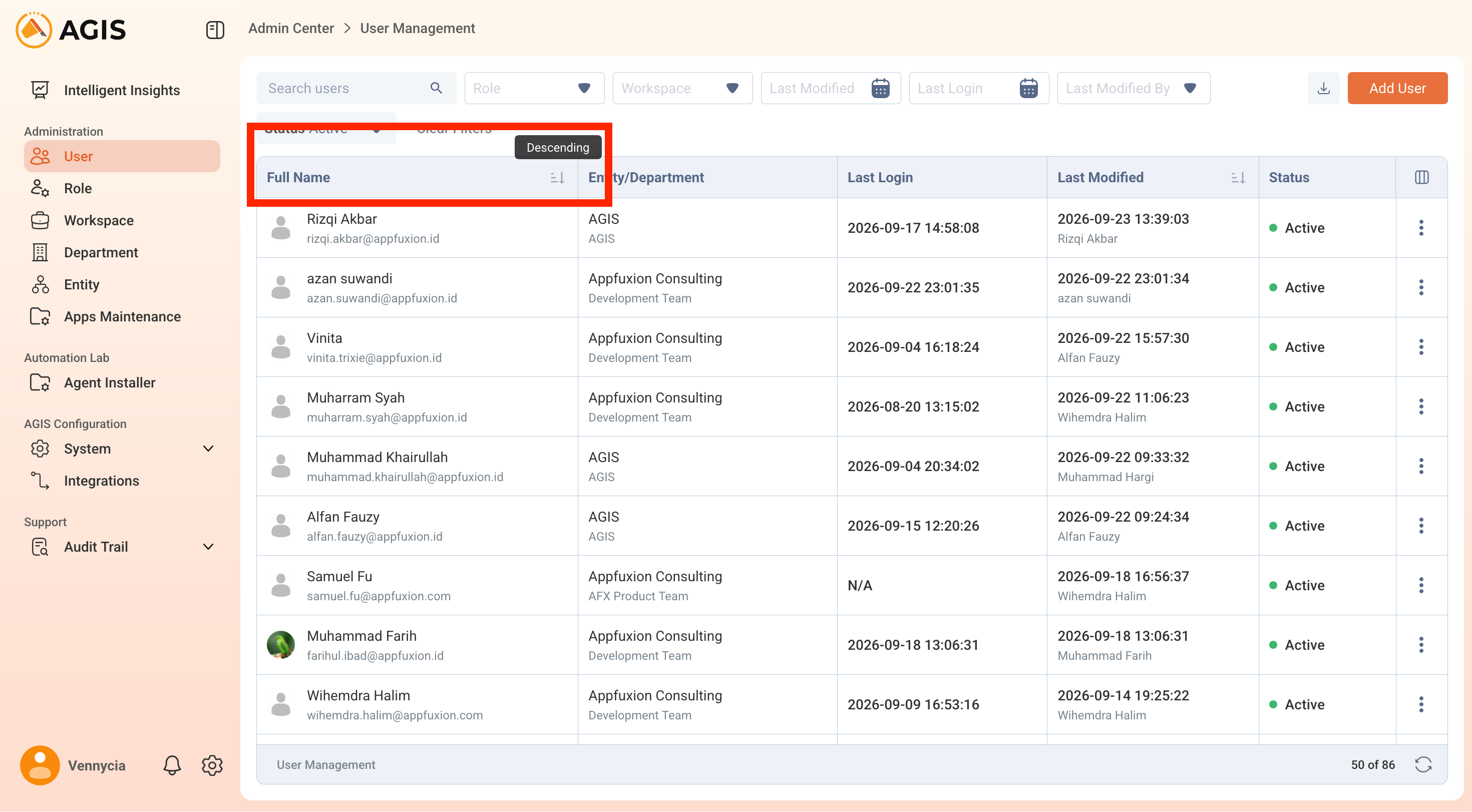
Clicking on the table headers allows for sorting in an ascending or descending order.
Downloading Users List
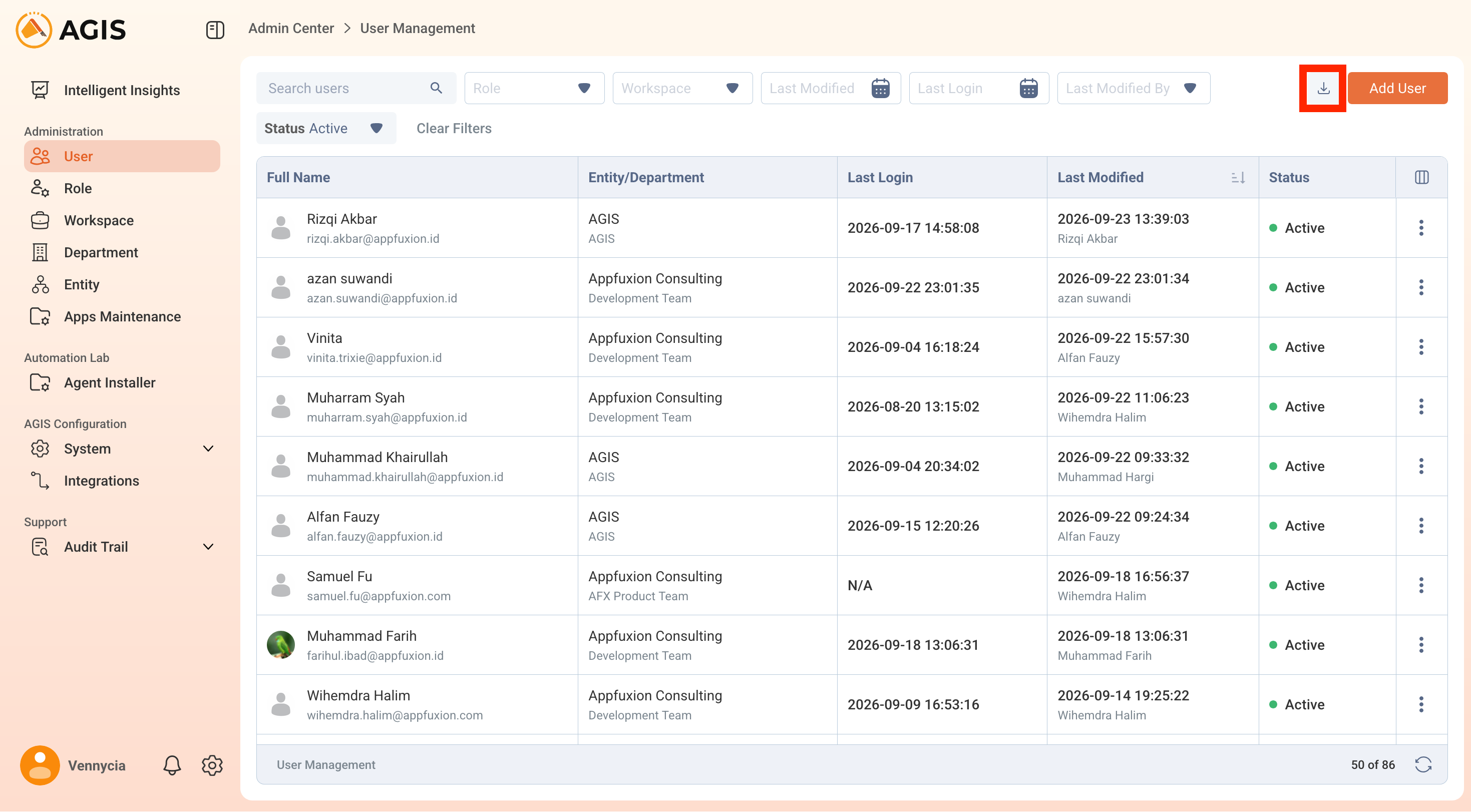
On the right-side of the screen, a download button can be found. Downloads the whole list of users in .csv format.
View Details
View Details can be accessed by clicking on the three-dots menu of a user regardless of their status. Shows the details of a user account.
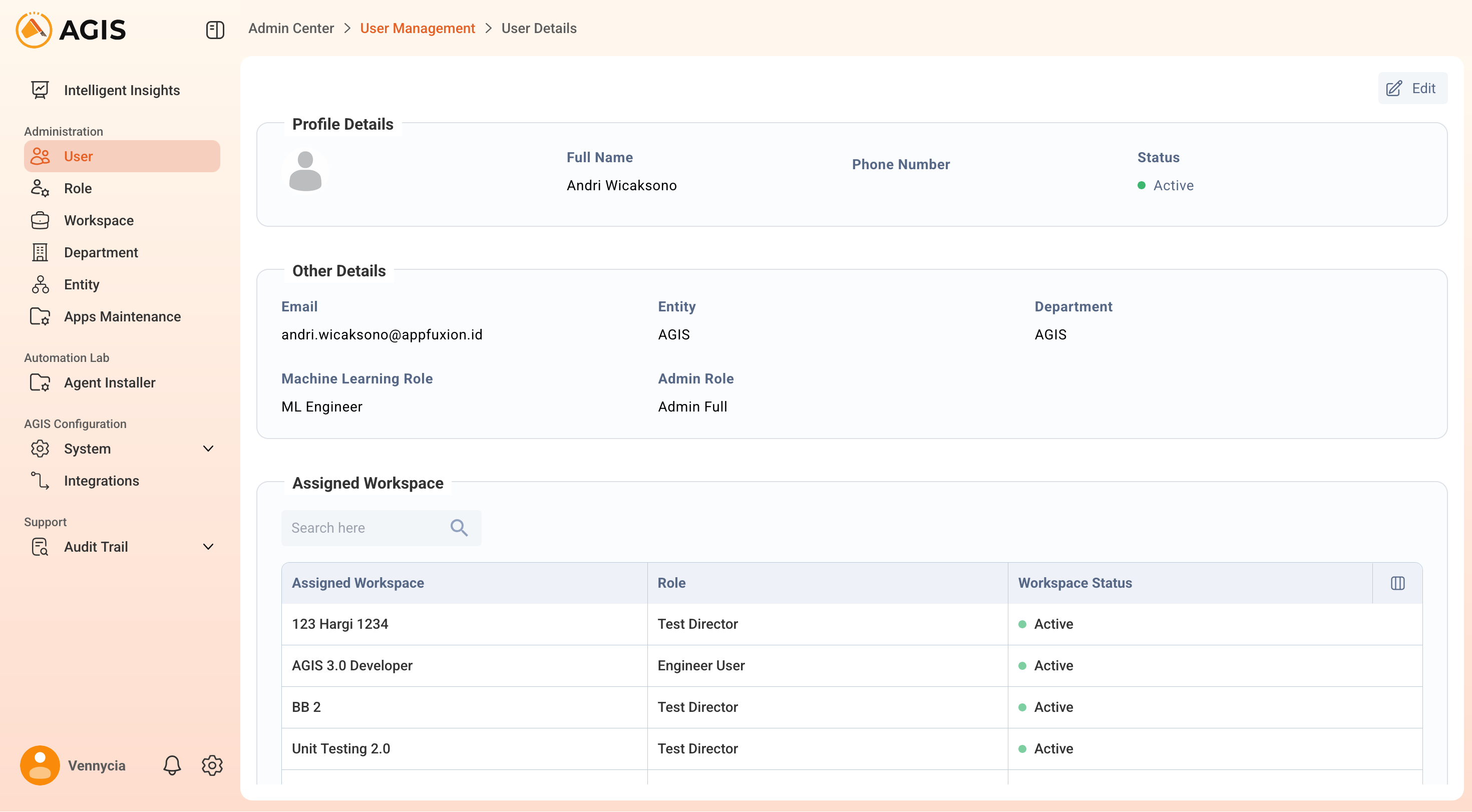
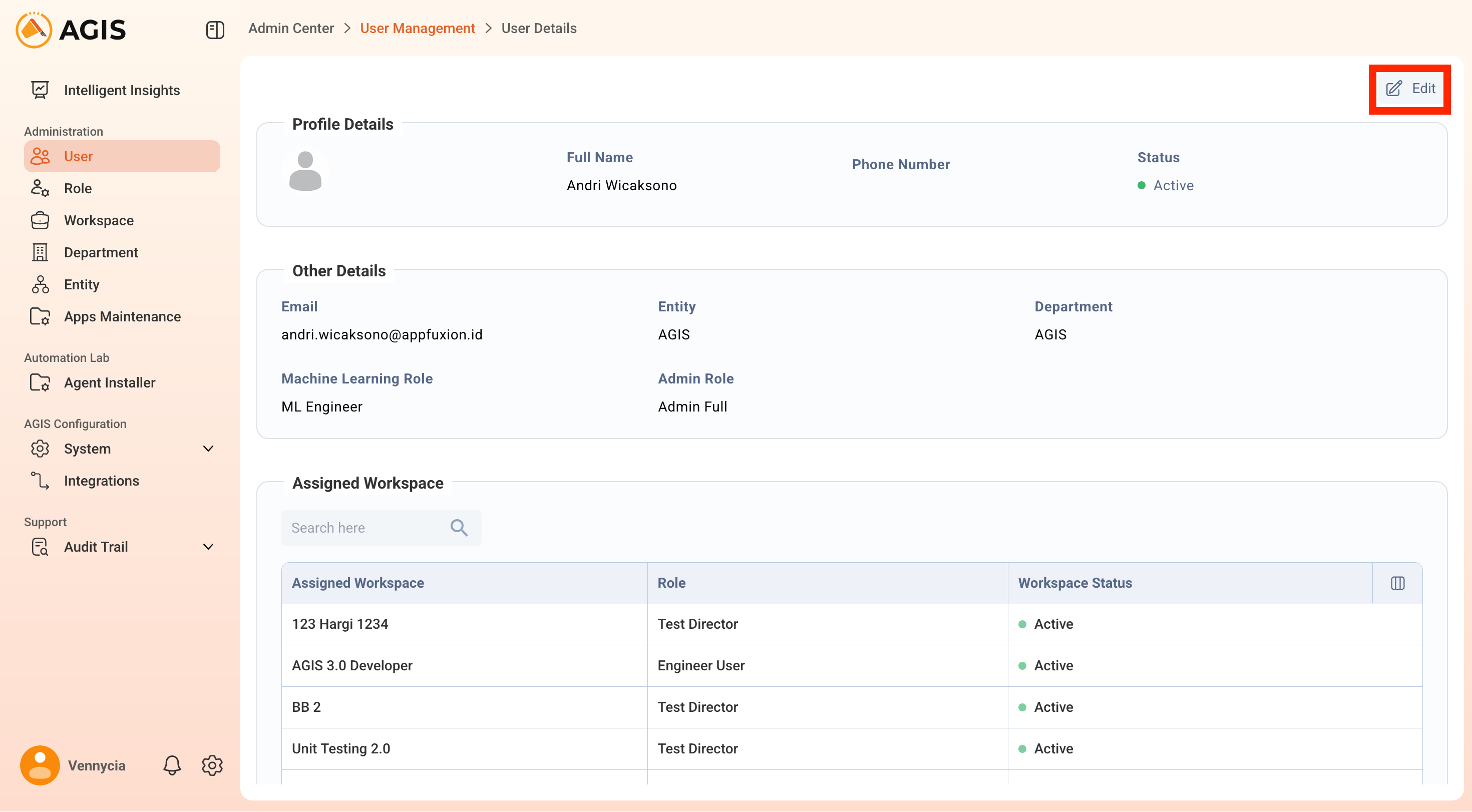
Details of a user account can be edited by clicking on the Edit button.
Deactivating a User
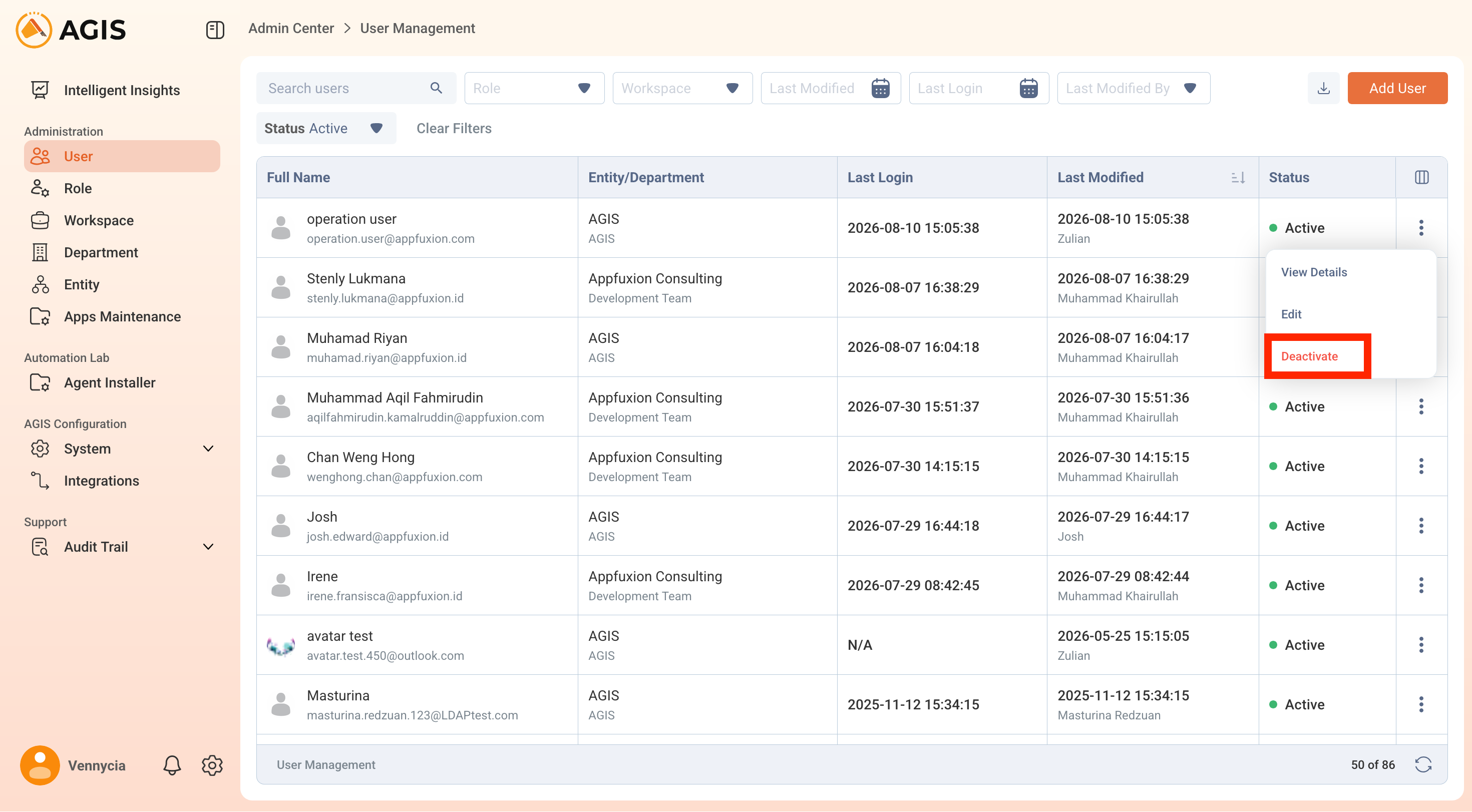
Deactivate can be accessed by clicking on the three-dots menu of a user with the Active status.
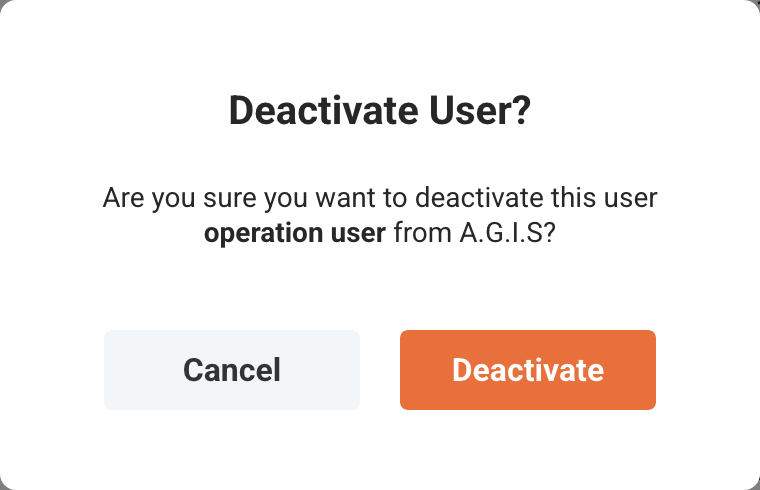
Deactivates the selected user account.
Users will be prompted to confirm their choice.
Activating a User
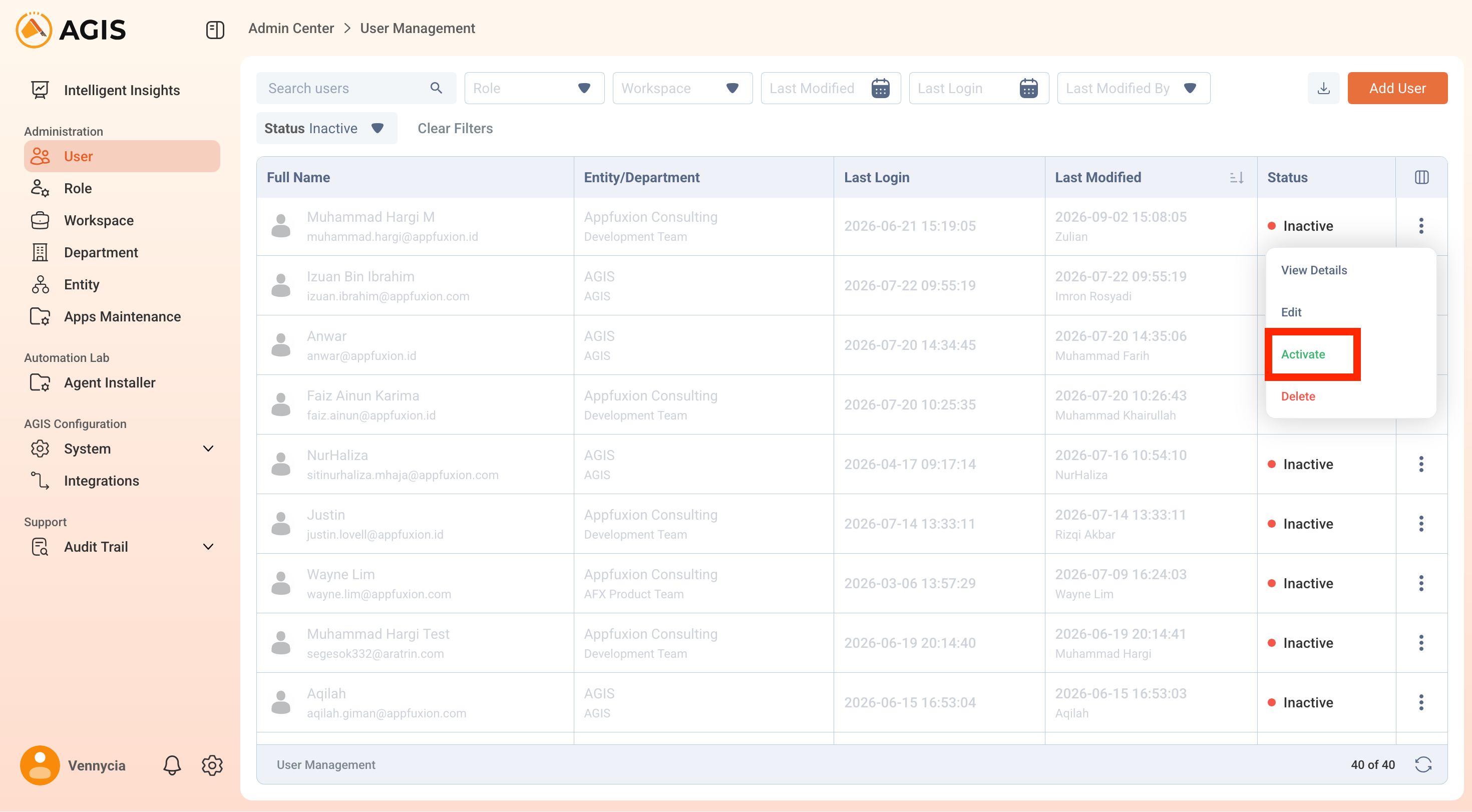
Activate can ba accessed by clicking on the three-dots menu of a user with the Inactive or Invited status.
Reactivates a previously deactivated user account.
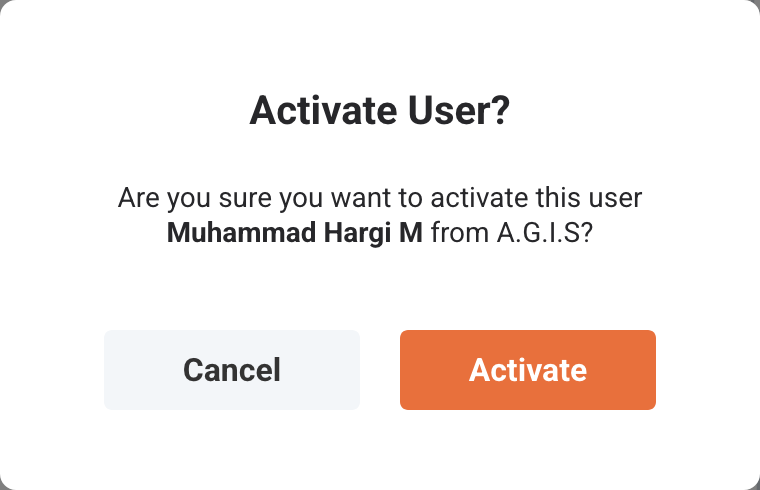
Users will be prompted to confirm their choice.
Deleting a User
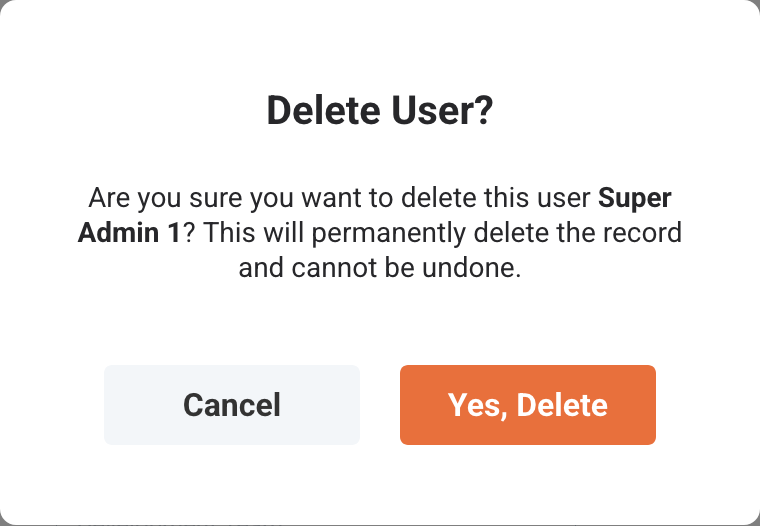
Delete can be accessed by clicking on the three-dots menu of a user with the Inactive or Invited status.
Users must have an Admin role with the Delete User permission to delete a user.
Permanently deletes the user from AGIS.
Users will be prompted to confirm their choice.